
This section contains carefully selected MCQs and Previous Year Questions with explanations to help students understand concepts and prepare effectively for examinations, interviews, and competitive tests.
Q: 1Which of the following positions the components into five regions: east, west, north, south, center?
Option A
In Java GUI programming, a layout manager controls the position and size of components inside a container. Instead of manually specifying the exact coordinates of every component, Java provides different layout managers to arrange components automatically.
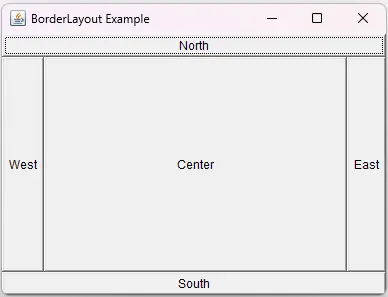
BorderLayout is the layout manager that divides a container into five regions:
These regions are represented by constants such as BorderLayout.NORTH, BorderLayout.SOUTH, BorderLayout.EAST, BorderLayout.WEST, and BorderLayout.CENTER.
E.g.:
import java.awt.*;
import java.awt.event.*;
class Example
{
public static void main(String args[])
{
Frame frame = new Frame("BorderLayout Example");
frame.setLayout(new BorderLayout());
frame.add(new Button("North"), BorderLayout.NORTH);
frame.add(new Button("South"), BorderLayout.SOUTH);
frame.add(new Button("East"), BorderLayout.EAST);
frame.add(new Button("West"), BorderLayout.WEST);
frame.add(new Button("Center"), BorderLayout.CENTER);
frame.setSize(400, 300);
frame.setVisible(true);
frame.addWindowListener(new WindowAdapter()
{
public void windowClosing(WindowEvent e)
{
frame.dispose();
}
});
}
}
OUTPUT
Q: 2Which of the following may contain a menu bar?
Option B
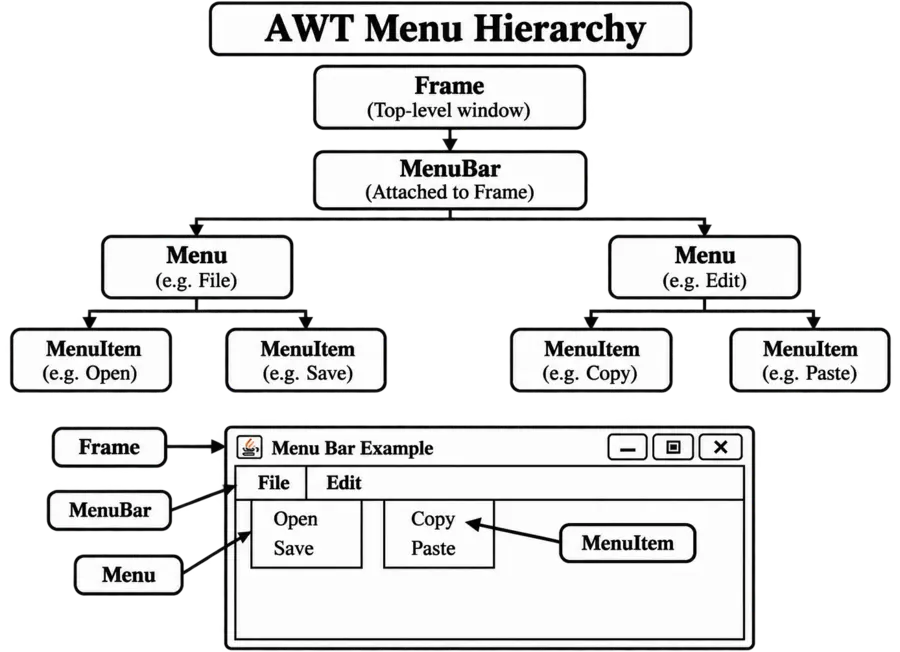
In Java AWT, a menu bar is represented by the MenuBar class. A menu bar is normally attached to a Frame by using the setMenuBar() method. The Frame class represents a top-level window and provides a dedicated area for displaying a menu bar.
E.g.:
import java.awt.*;
import java.awt.event.*;
class Example
{
public static void main(String args[])
{
Frame frame = new Frame("Menu Bar Example");
MenuBar menuBar = new MenuBar();
Menu fileMenu = new Menu("File");
Menu editMenu = new Menu("Edit");
fileMenu.add(new MenuItem("Open"));
fileMenu.add(new MenuItem("Save"));
editMenu.add(new MenuItem("Copy"));
editMenu.add(new MenuItem("Paste"));
menuBar.add(fileMenu);
menuBar.add(editMenu);
frame.setMenuBar(menuBar);
frame.setSize(400, 300);
frame.setVisible(true);
frame.addWindowListener(new WindowAdapter()
{
public void windowClosing(WindowEvent e)
{
frame.dispose();
}
});
}
}
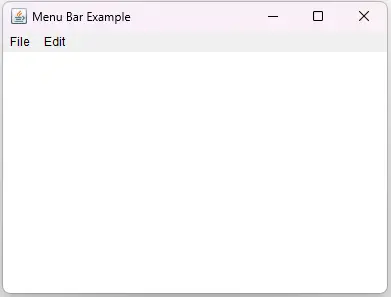
OUTPUT
Q: 3Which method is used to set the text of a label object?
Option A
In Java AWT, the Label class is used to display a single line of text in a Graphical User Interface (GUI). The text of a label can be set or changed using the setText() method, which accepts a string as an argument. The getText() method is used to retrieve the current text displayed by the label.
E.g.:
Label label = new Label("Hello");
label.setText("Welcome to Java");
Q: 4Which of the following statements about GUI components is wrong?
Option B
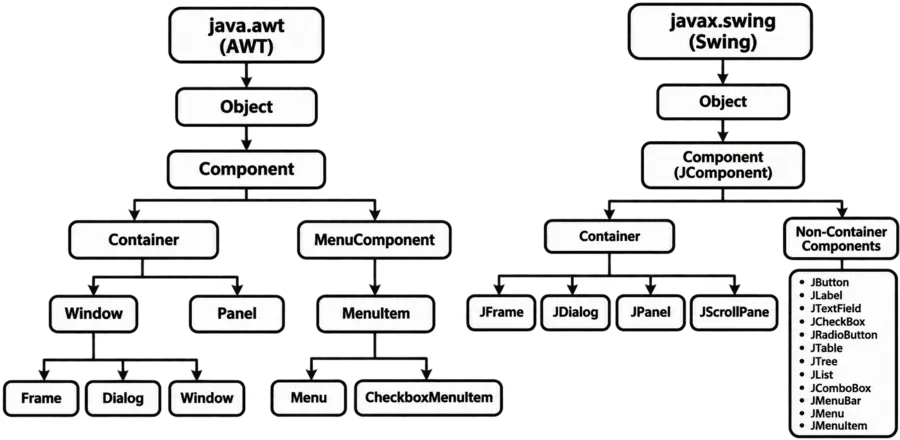
Java provides several libraries and frameworks for creating graphical user interfaces. A GUI (Graphical User Interface) allows users to interact with a program through visual elements such as windows, buttons, labels, text fields, menus, check boxes, and so on.
Two important Java GUI technologies are AWT and Swing.
AWT (Abstract Window Toolkit) is Java original GUI toolkit. It is present in the java.awt package and provides components such as Button, Label, TextField, Checkbox, Frame, etc. AWT components are generally called heavyweight components because they depend on the underlying operating system native GUI components.
Swing was introduced later and provides a larger set of GUI components. Swing classes are mainly present in the javax.swing package. Examples include JButton, JLabel, JTextField, JCheckBox, and JFrame. Swing components are generally lightweight and provide a more flexible and consistent GUI across platforms.
AWT as a whole has not been deprecated. Many AWT classes are still valid Java classes and are used even by Swing applications.
Q: 5Which of the following arranges the components horizontally?
Option D
In Java GUI programming, a layout manager controls the position and arrangement of components inside a container. Instead of manually specifying the coordinates of each component, layout managers automatically determine where components should be placed.
FlowLayout is the layout manager that normally arranges components from left to right in a horizontal row. When the available horizontal space is not sufficient for all components, the remaining components automatically move to the next line. This behavior is similar to how words flow from one line to the next in a paragraph.
FlowLayout is available in the java.awt package and is the default layout manager for a Panel.
Java AWT Layout Managers:
| Layout Manager | Class Name | Arrangement | Description |
|---|---|---|---|
| Flow Layout | FlowLayout | Left to Right | This layout manager arranges components sequentially from left to right and moves components to the next row when the available horizontal space is insufficient. |
| Border Layout | BorderLayout | Five Regions | This layout manager divides a container into five regions: North, South, East, West, and Center. |
| Grid Layout | GridLayout | Rows and Columns | This layout manager arranges components in a rectangular grid in which each cell generally has the same size. |
| Card Layout | CardLayout | Stack of Cards | This layout manager treats components as a collection of cards and normally displays one card at a time. |
| GridBag Layout | GridBagLayout | Flexible Grid | This layout manager arranges components in a flexible grid and allows components to occupy different numbers of rows or columns. |
Q: 6Which method returns the preferred size of a component?
Option C
In Java GUI programming, every component has a size that determines how much space it occupies on the screen. Java provides methods to obtain different size-related information about a component. The getPreferredSize() method returns the preferred size of a component.
The preferred size represents the size that a component would ideally like to have when a layout manager arranges the components. It is represented by a Dimension object containing the width and height. The method is defined in the java.awt.Component class.
Syntax:
public Dimension getPreferredSize()
Important Size-Related Methods in Java GUI:
| Method Name | Class Name | Description |
|---|---|---|
| getPreferredSize() | Component | This method returns the preferred size of a component as a Dimension object. |
| getMinimumSize() | Component | This method returns the minimum size that a component requires to display properly. |
| getMaximumSize() | Component | This method returns the maximum size that a component can preferably occupy. |
| getSize() | Component | This method returns the current width and height of a component as a Dimension object. |
| setSize() | Component | This method sets the current width and height of a component. |
| getWidth() | Component | This method returns the current width of a component in pixels. |
| getHeight() | Component | This method returns the current height of a component in pixels. |
| setPreferredSize() | JComponent | This method specifies the preferred size of a Swing component. |
| getBounds() | Component | This method returns the bounding rectangle of a component, including its position, width, and height. |
| setBounds() | Component | This method sets the position and size of a component using its x-coordinate, y-coordinate, width, and height. |
| getLocation() | Component | This method returns the current location of a component as a Point object. |
| setLocation() | Component | This method changes the location of a component within its container. |
| getLayout() | Container | This method returns the layout manager currently associated with a container. |
| setLayout() | Container | This method assigns a layout manager to a container for arranging its components. |
You have reached the end of this topic. Continue learning with the next topic below.
Thank you so much for taking the time to read my Computer Science MCQs section carefully. Your support and interest mean a lot, and I truly appreciate you being part of this journey. Stay connected for more insights and updates! If you'd like to explore more tutorials and insights, check out my YouTube channel.
Don’t forget to subscribe and stay connected for future updates.
| Student Name | |
|---|---|
| College |
| What's Say |
|---|